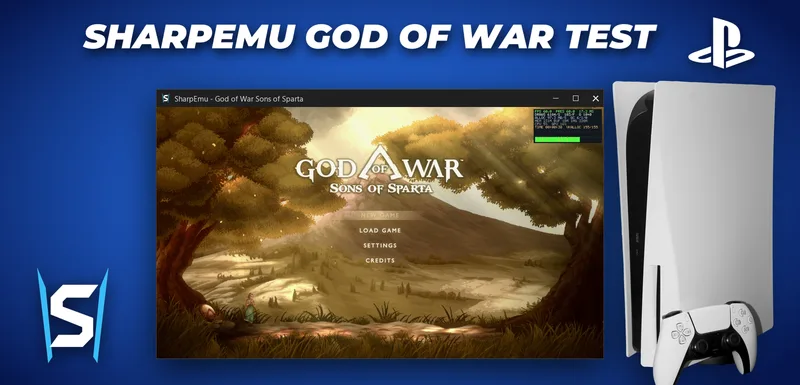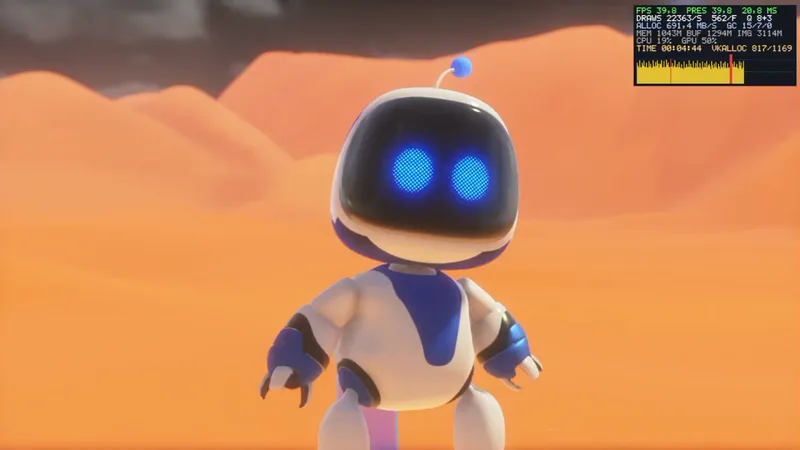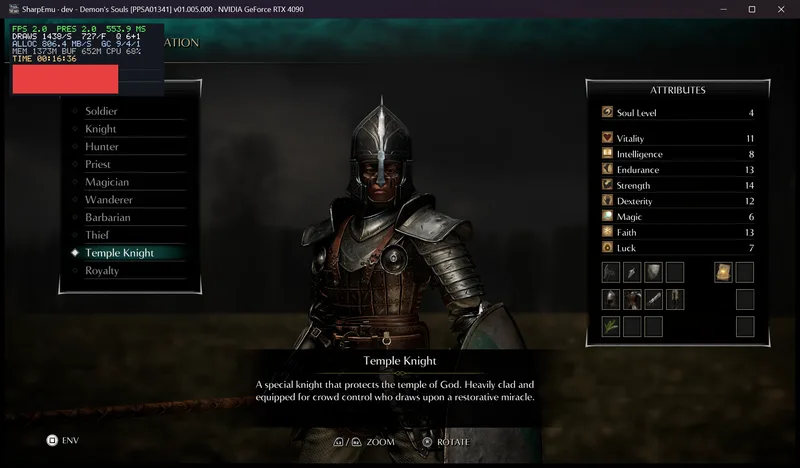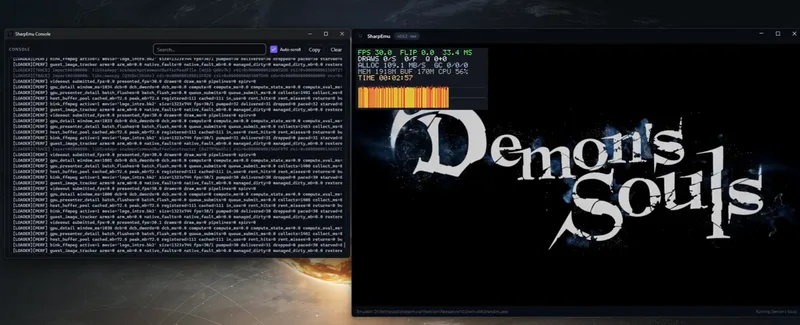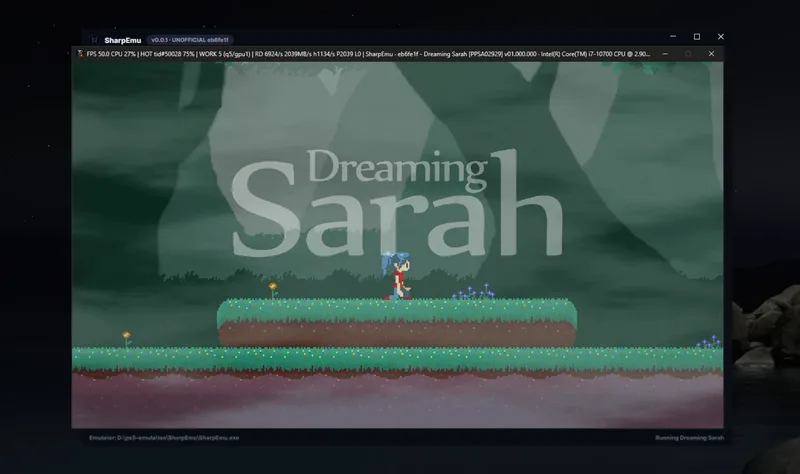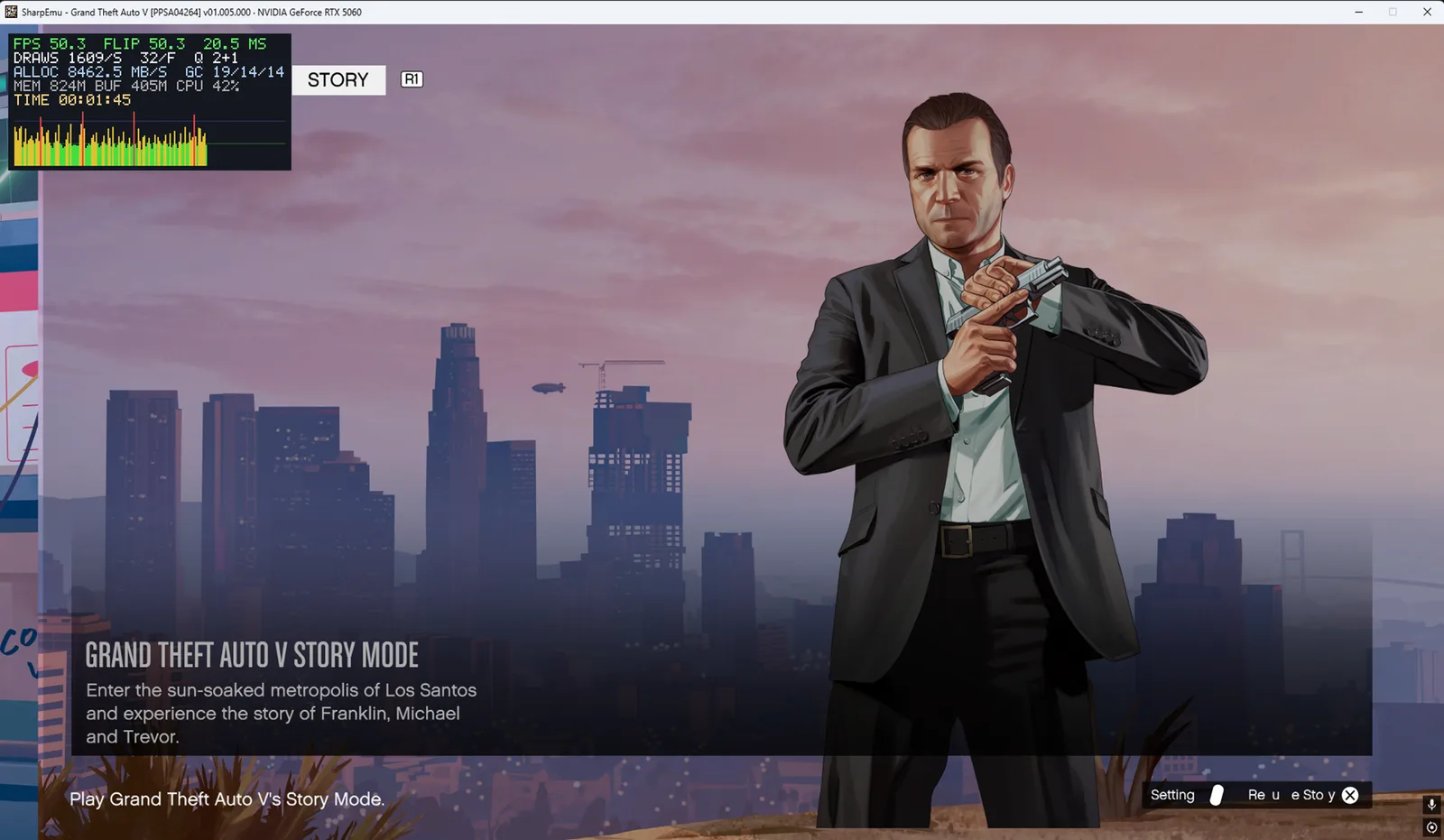

This guide walks you through everything you need for your first boot: checking your hardware, downloading the right build, launching a game, and what to do when something goes wrong.
Step 1: Check your PC
Before downloading anything, make sure your system can run SharpEmu. The most important requirement is a Vulkan-capable GPU with an up-to-date graphics driver. SharpEmu uses Vulkan for video output on Windows and Linux, and MoltenVK (a Vulkan implementation that runs on top of Apple’s Metal) on macOS.
SharpEmu runs on:
- Windows x64
- Linux x64
- macOS x64 (the macOS release already includes MoltenVK, so there is nothing extra to install)
Step 2: Download SharpEmu
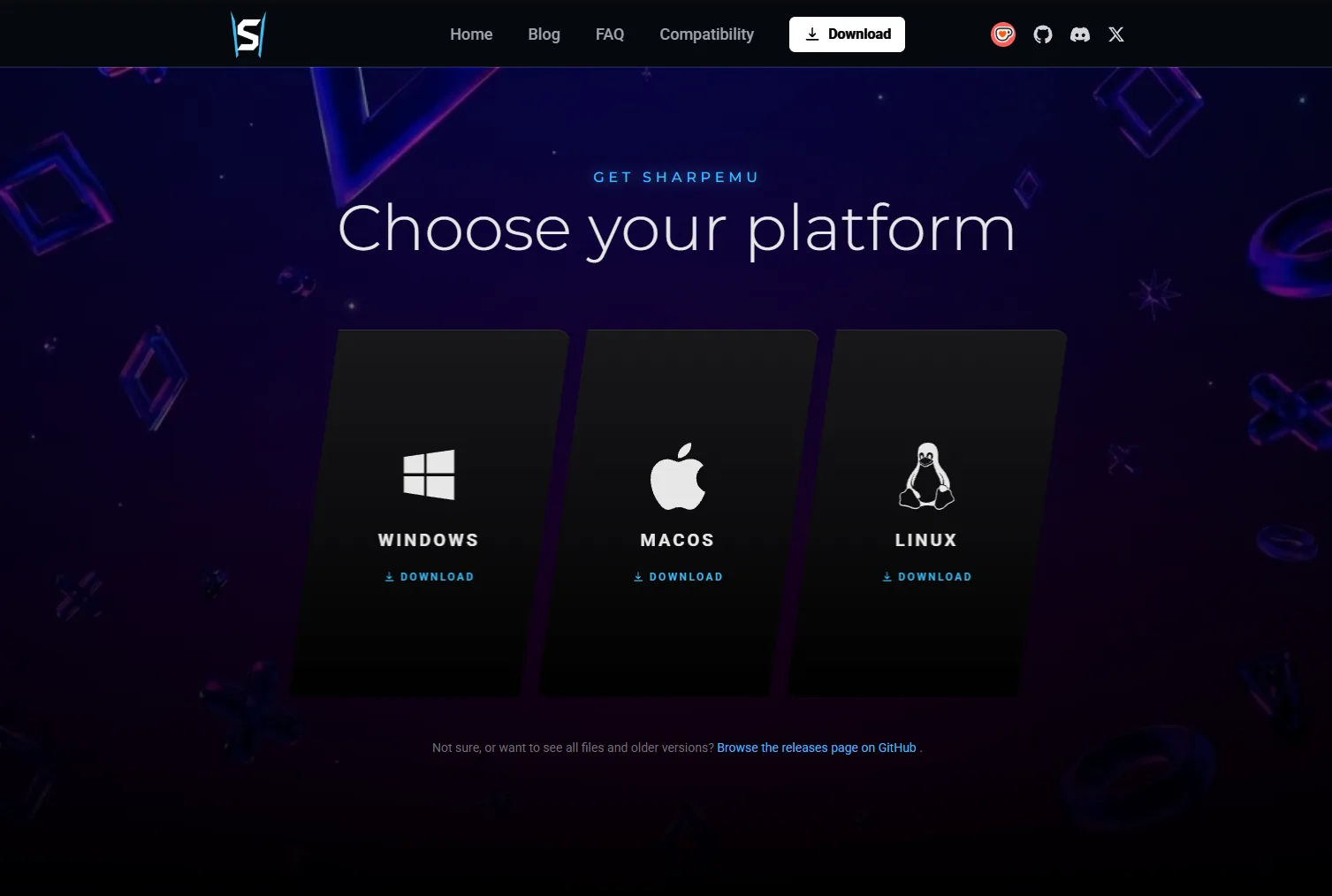
Head to the download page and pick the build for your operating system. You will get an archive: extract it to a folder of your choice. There is no installer, and SharpEmu runs straight from that folder.
Step 3: Get your game files (legally)
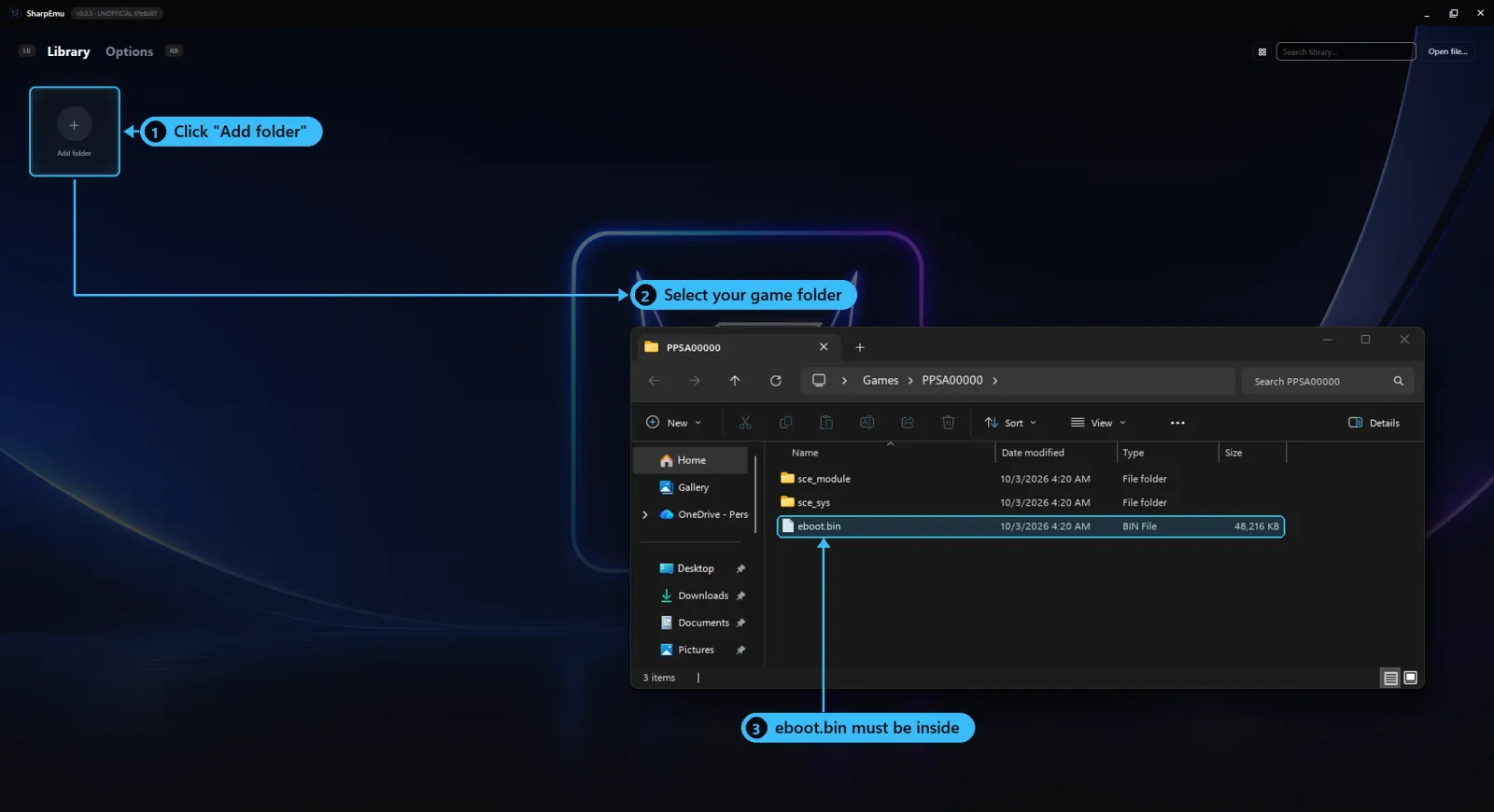
Just click on “Add Folder” and select the folder of the game. Remember that the game must have the “eboot.bin”
❗ .PKG and .FFPKG files won’t work.
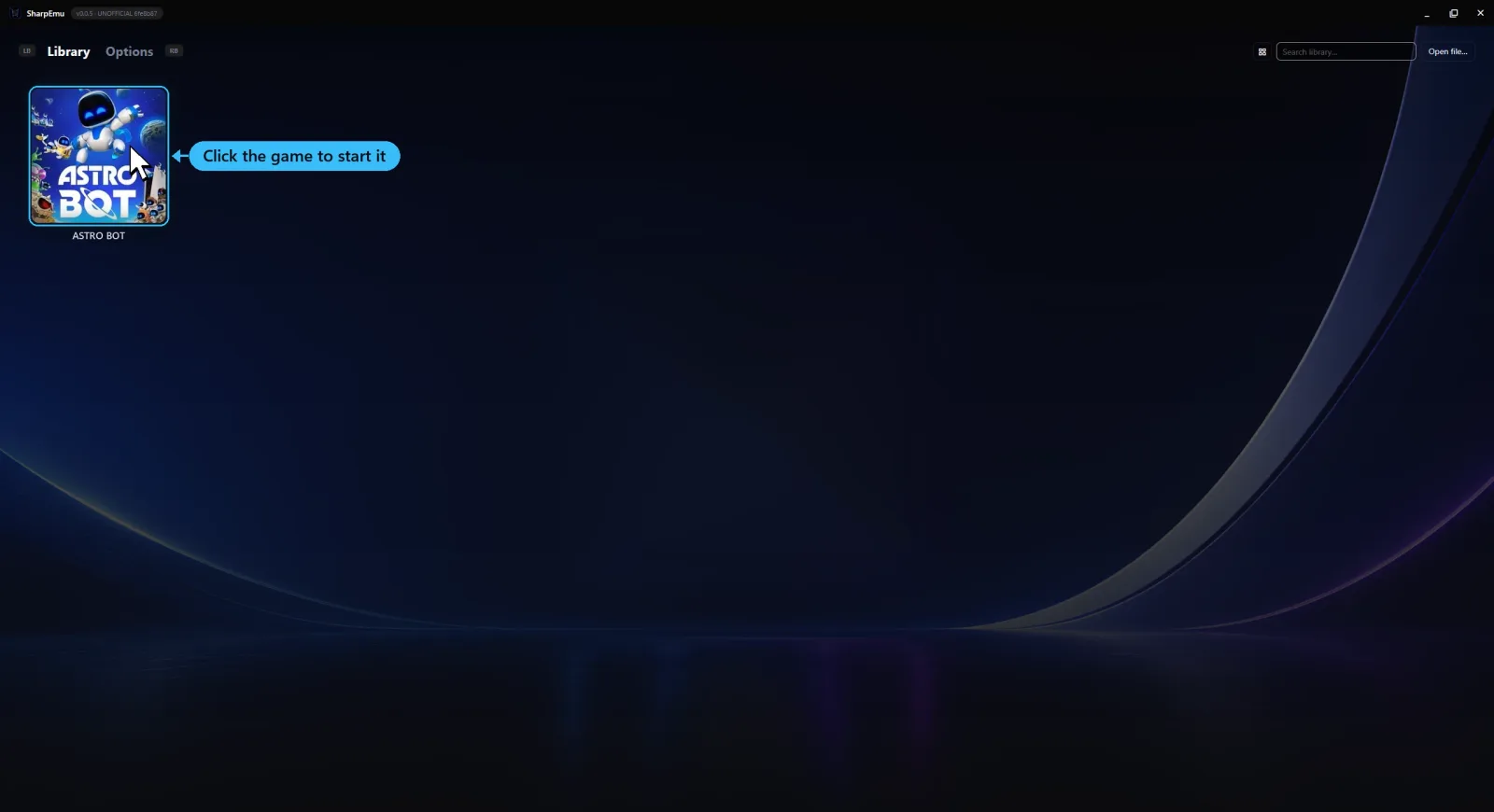
Step 4: Launch your first game
Click on the game and it will launch.
Other stuff
If you prefer you can launch the games via terminal, pass the path to eboot.bin directly.
On Windows (PowerShell):
.\SharpEmu.exe "C:\path\to\game\eboot.bin" --log-to-file
On Linux and macOS, first make the file executable, then run it:
chmod +x ./SharpEmu
./SharpEmu "/path/to/game/eboot.bin" --log-to-file
The --log-to-file option saves a log of the session. It is not required, but it is very useful if something goes wrong (more on that below). Any environment variable you can set in the GUI can also be passed directly through the command line.